On this page
Key takeaways
- Google says AI Overviews and AI Mode need no special files or markup. Both pull pages from Google's normal search index, so regular search work still counts.
- Shopify says AI Mode finds products through Merchant Center, where your store sends product data to Google. Fixing the errors in Shopify's Google & YouTube channel is the first job.
- Search Console, Google's tool for site owners, has a Generative AI performance report that shows how often AI Overviews and AI Mode showed links to each of your pages.
- A Search Console setting can keep your site out of these features. Sites are included by default, but it takes a minute to confirm yours is.
What AI Overviews and AI Mode are
Google now answers some searches with AI. AI Overviews are AI-written summaries shown with some results. Google calls each one "an AI-generated snapshot with key information and links". They show up when Google's systems decide generative AI can be especially helpful.
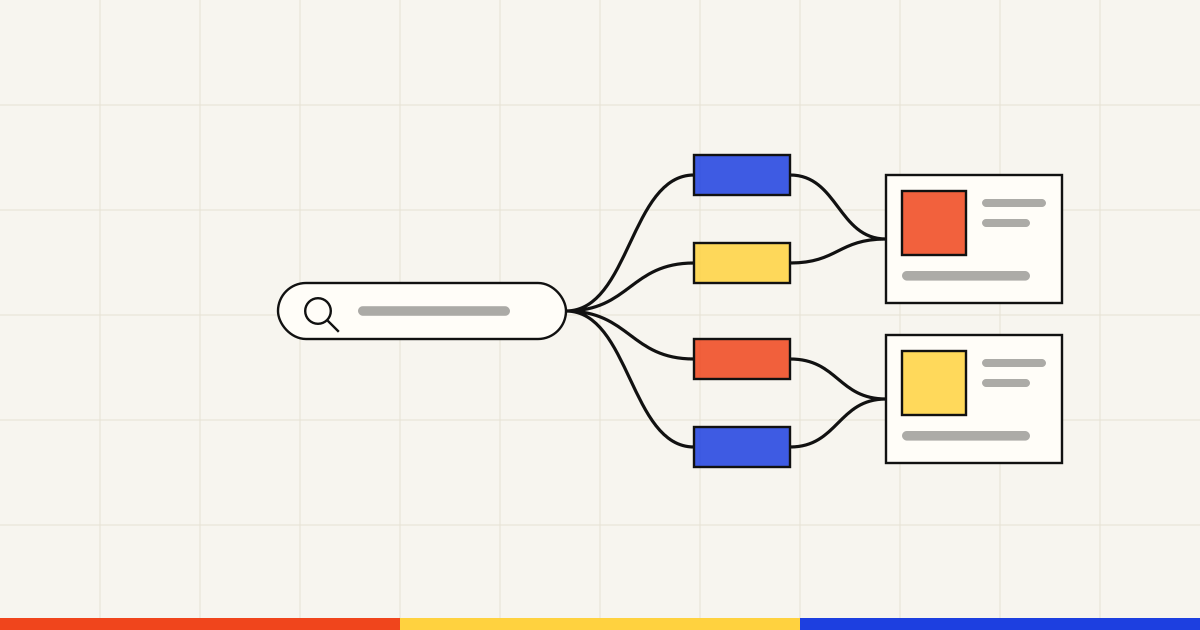
AI Mode goes further. It turns a search into a conversation, where you ask a follow-up question and the context from your first search carries over. Both features can use what Google calls query fan-out. That means they issue "multiple related searches across subtopics and data sources" to build one answer.
Picture a shop that sells ceramic planters. A shopper who asks AI Mode for frost-proof planters for a small balcony is asking about size and about cold weather at once. That is a made-up example, but it shows why fan-out matters to a store. Each smaller search is one more chance for a page or product to be picked.
For how this fits with ChatGPT and other assistants, see our guide to how AI search works for online stores.
What makes a page eligible
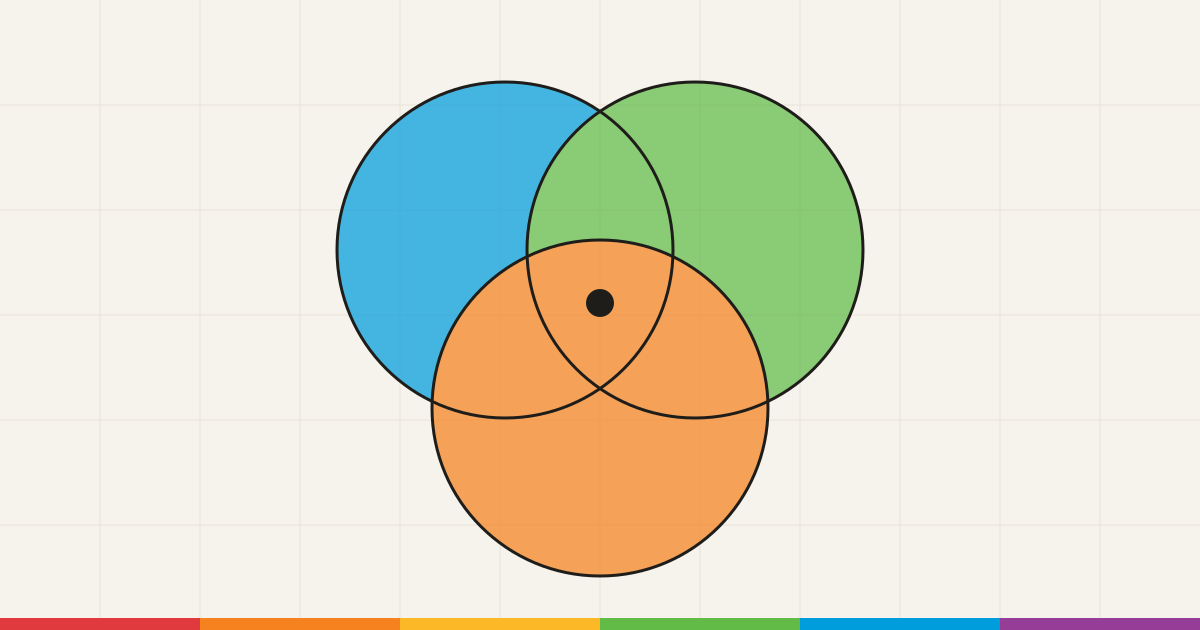
The bar is lower than most AI search advice suggests. Google's page on AI features and your website says a page must be indexed, meaning stored in Google's list of pages. It must also be "eligible to be shown in Google Search with a snippet." Then it adds: "There are no additional requirements to appear in AI Overviews or AI Mode, nor other special optimizations necessary."
There is one more switch. Google's guide to optimizing for generative AI features says a site must be included in Search generative AI features in Search Console, Google's tool for site owners. The Search generative AI control sits under Settings, and including your site is the default for every property.
Meeting the rules doesn't mean your page will be shown, and Google says so plainly. Its guide also explains how pages get picked. The AI features rely on Google's "core Search ranking systems to retrieve relevant, up-to-date web pages from our Search index." So the pages that can be chosen are the same pages that can rank in normal search.
Is there such a thing as AI Mode SEO?
Yes, but it is mostly the search engine optimization you already know. Google's optimization guide lists several things you can skip:
- An llms.txt file or any other AI text file. Google says "Google Search itself doesn't use them."
- Breaking pages into tiny pieces. Google adds that "There's no ideal page length."
- Special schema. Structured data, the hidden code that labels a page's details for search engines, "isn't required for generative AI search." Google still calls it "a good idea" for your overall search work, and our guide to product schema on Shopify shows how to check yours.
- Writing in a special way for AI. Google says to write for your human audience.
What Google does ask for is original content written for people, backed by good images and video. For a store, your time is better spent on product data than on rewriting pages in an "AI style".
Watch out
Google warns you to "be wary of third-party tools that promise ranking success or claim to use 'internal' Google metrics." It says no outside tool has access to its ranking or AI systems.
That leaves the part of AI Mode that is different for stores: the product results.
Where product results come from
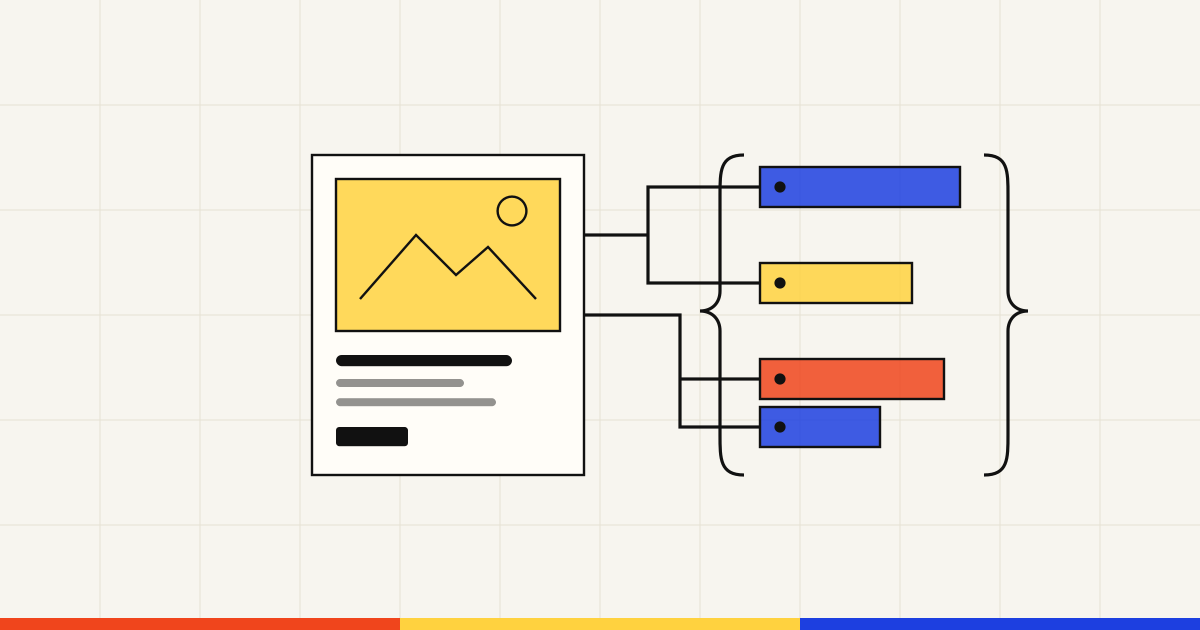
Google says generative AI responses "can include product listings, product information" and more. Its guide names Merchant Center feeds and Business Profiles as ways to help your products show in AI responses and in other Google results. Merchant Center is the tool where stores send product data to Google.
Shopping in AI Mode also draws on the Shopping Graph, Google's collection of product listings. In May 2025 Google said AI Mode "brings together Gemini capabilities with our Shopping Graph". It said the graph held more than 50 billion product listings, with more than 2 billion refreshed every hour. In the same post, Google said AI Mode starts a query fan-out for specific shopping requests and shows a panel of products that updates as the shopper narrows the search.
For a Shopify store, the usual route in is the Google & YouTube channel, though Shopify also mentions third-party feeds and manual upload. Shopify's page on selling on Google AI Mode and Gemini says "Product discovery for Google AI Mode and Gemini is powered by Google Merchant Center." The channel syncs the products available to your online store to Merchant Center, and Google reviews new ones within 3 to 5 business days.
The data has to pass Google's checks first. Google's page on free listings says most of its listed fields are required, such as price and availability. It also asks for shipping settings and return policy details. Some products need a GTIN as well, the number under a product's barcode. Our guide to GTINs and product categories on Shopify covers when you need one.
Google also offers optional conversational attributes, such as question and answer pairs. Google says they help shoppers find product details "across AI-driven surfaces, like AI Mode in Search." Adding them won't change the approval status of your products.
Buying inside AI Mode and Gemini
Shopify now offers a way for shoppers to buy without leaving Google. Its Google AI Mode and Gemini channel uses a Shopify-powered direct checkout inside AI Mode and Gemini. To use it, you need:
- a valid Merchant Center account that meets Google's requirements,
- products that are eligible for Shopify Catalog, the structured source of product data that select AI platforms can search,
- your store policies filled in, plus Shopify's supplemental terms for the channel accepted,
- customers in the United States, Canada or Australia.
Shopify says direct checkout is on by default for eligible stores and is rolling out gradually, so you may not see it yet. If you turn it off, your products can still show in results, and shoppers go to your store to buy. Either way, discovery runs through Merchant Center, which brings you back to the product feed. If you also sell in ChatGPT, our guide to selling through ChatGPT on Shopify covers that channel.
The next question is how to tell whether any of this is working.
How to see your Google AI traffic
Google gives you two reports of its own. The first is in Search Console. Google says traffic from AI features is counted in the Performance report under the "Web" search type.
Search Console also has a separate Generative AI performance report for AI Overviews and AI Mode. It counts impressions, meaning each time a link to your site was shown in one of those features, and shows which pages get the most. Google says that since August 31, 2026, it has been available for all websites. If your site has too few impressions, the report won't appear.
The second is in Merchant Center. Its AI performance insights cover conversational shopping searches in AI Mode and AI Overviews. They show your share of voice against a set of competitors, and how many of your products show for top terms. For now they cover English-language searches for accounts in five countries, including the United States, and only organic traffic, not ads.
For the full set of free checks, including ChatGPT, see our guide to checking your store's AI visibility for free.
What to do this week
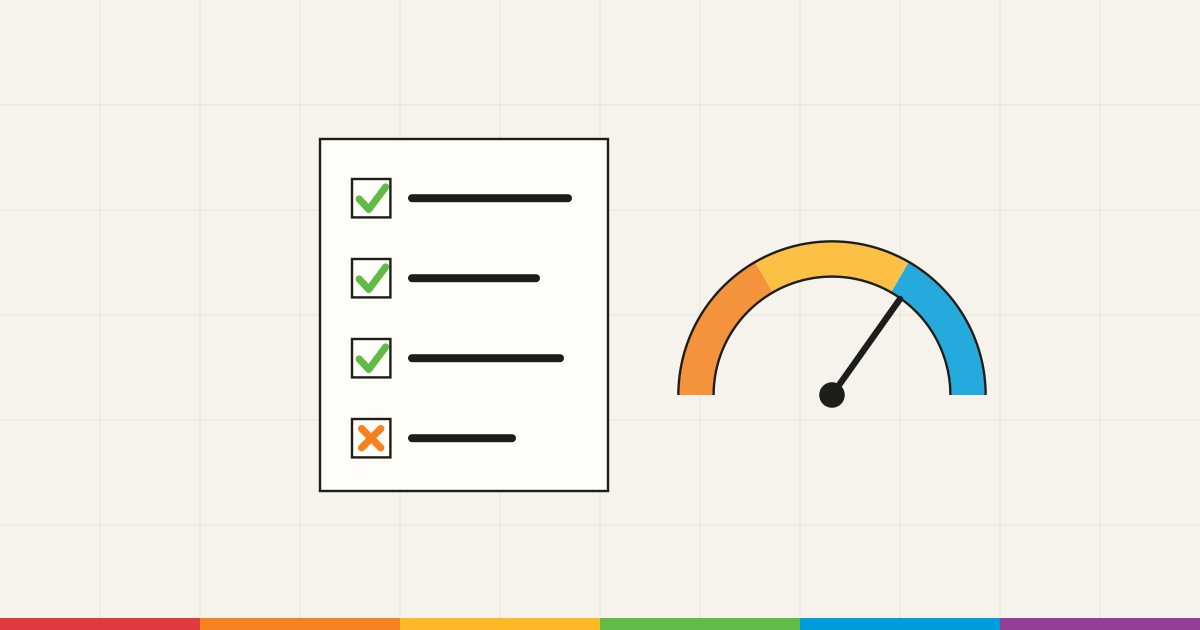
Work through these in order: eligibility first, then product data, then measurement.
-
Confirm your site is included
In Search Console, open Settings, then Search generative AI. Check that your property includes its content in generative AI features. It should, unless someone changed it.
-
Fix product errors in the Google channel
In your Shopify admin, open a product. Under Sales channels, click Google to see its errors. Shopify's list of common errors includes a missing description and a missing GTIN or MPN.
-
Fill in shipping and returns
Google needs shipping settings in the United States and several other countries. It also recommends adding your return policy in Merchant Center.
-
Decide on direct checkout
If you sell to one of the supported countries, open Sales channels, then Agentic. Turn off "Allow Shopify to manage for me" and click Google AI Mode and Gemini. Then choose whether direct checkout is on.
-
Read both reports once a month
Open the Generative AI performance report in Search Console. In Merchant Center, the AI performance tab sits under Analytics, in Products. Note which pages and products gain or lose impressions.
How Mr. AEO helps
Mr. AEO checks your products the way Google and AI tools read them. Then it writes fixes such as titles and descriptions from your own store data. Connect Search Console and it ranks those fixes by the search traffic at stake.
Once you let it see your sales channels, it warns you before a fix changes a field your Google Shopping feed carries. You approve each change and can undo it. It does not measure what AI Mode shows shoppers, so keep using the two reports above. Start with the free product data checker.
Sources
- AI features and your website, Google Search Central (last updated December 10, 2025).
- Optimizing your website for generative AI features on Google Search, Google Search Central (last updated July 10, 2026).
- Find information in faster & easier ways with AI Overviews in Google Search, Google Search Help (accessed November 2, 2026).
- Search generative AI control, Search Console Help (accessed November 2, 2026).
- Generative AI performance report (Search), Search Console Help (accessed November 2, 2026).
- Shop with AI Mode, use AI to buy and try clothes on yourself virtually, Google blog (May 20, 2025).
- Free listings for products, Google Merchant Center Help (accessed November 2, 2026).
- How to use conversational attributes, Google Merchant Center Help (accessed November 2, 2026).
- About AI performance insights, Google Merchant Center Help (accessed November 2, 2026).
- Selling on Google AI Mode and Gemini, Shopify Help Center (accessed November 2, 2026).
- Shopify Catalog, Shopify Help Center (accessed November 2, 2026).
- Syncing your products, Shopify Help Center (accessed November 2, 2026).
Frequently asked questions
What triggers Google AI Overviews?
Google says AI Overviews appear when its systems decide generative AI can be especially helpful, for example when you want to understand information from several sources quickly. You can't switch one on for your page. What you control is whether your page can be used: it must be indexed and eligible to show a snippet.
What is AI Mode in SEO?
AI Mode is Google's chat-style search, where a shopper can keep asking follow-up questions. In SEO terms, it is one more place your pages and products can appear. Google uses the same index and core ranking systems to find pages for it, so the same basics apply.
How do I rank in AI Mode?
There is no separate ranking to chase. Google says there are no extra requirements, and that being indexed doesn't mean you will be shown. For a store, the practical steps are a clean Google product feed and pages that answer what shoppers ask about your products.
Do I need an llms.txt file for Google's AI features?
No. Google says you don't need new AI text files or special markup to appear in Google Search, and that Google Search itself doesn't use them. An llms.txt file won't change how Google treats your store, so your time is better spent on your product feed.
Can I keep my store out of AI Overviews and AI Mode?
Yes. In Search Console, the Search generative AI setting under Settings lets a property owner exclude the site. Google says this doesn't affect ranking in the rest of Search. You can also limit what Google quotes with snippet controls such as nosnippet, or use noindex to leave Search entirely.