On this page
Key takeaways
- Shopify's Dawn and Horizon themes already add product schema. Check one product page before you install an app for it.
- Google's testing tool shows which kinds of search result your markup supports. Look for a merchant listing, the type for a product you can buy, then check that the markup's price matches the page.
- The schema can only repeat your product data. A barcode that isn't in Shopify can't show up in the markup.
- Keep one copy. Two blocks with different prices can't both be a true picture of the page, and that is what Google asks for.
- Google says its AI search features need no special markup, so treat product schema as search engine optimization (SEO), not an AI trick.
What product schema is
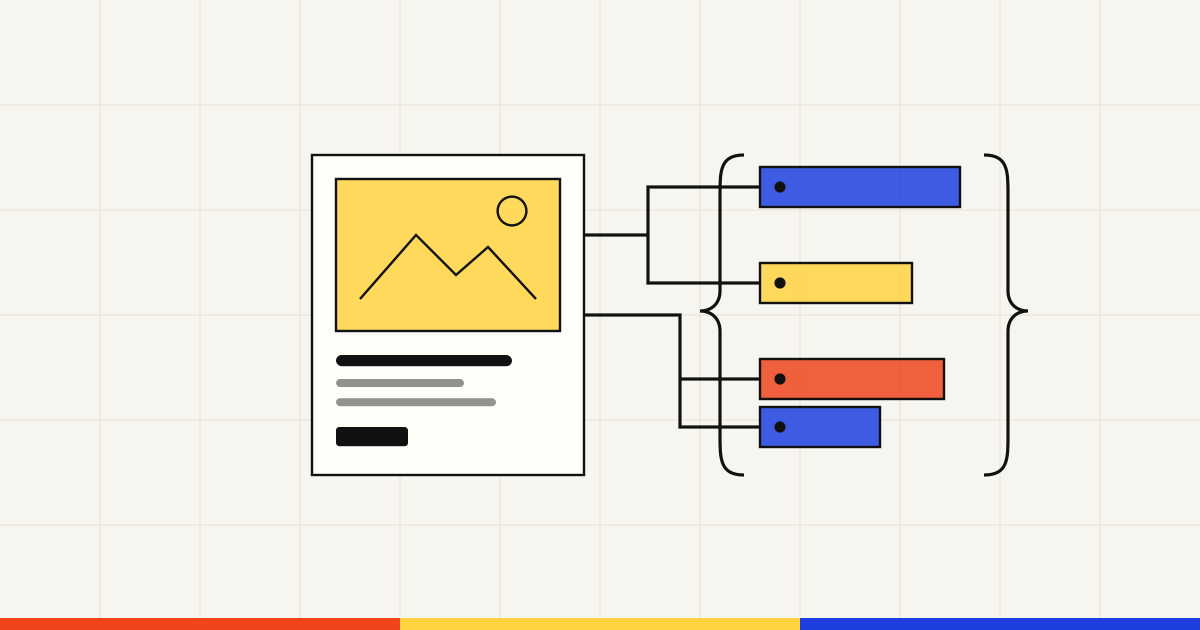
Google describes structured data as "a standardized format for providing information about a page and classifying the page content." For a product, that means code behind the page that labels each fact so a machine doesn't have to guess.
Many people call it schema markup, meaning structured data code that uses the shared schema.org vocabulary. Product schema is the part that describes a product. Google says most Search structured data uses this vocabulary. Where a site's setup allows it, Google recommends one format, JavaScript Object Notation for Linked Data (JSON-LD), a single block of code in the page that shoppers never see.
Picture a shop that sells waxed canvas bags. On the olive weekender's page, the product schema says it is a Product called Waxed Canvas Weekender, sold for $185 in US dollars. It also says the bag is in stock and made by the shop's own brand. Rich results are the extra details, such as price and stock, that Google can display under a result, and this markup can make the page eligible for them.
What your Shopify theme already outputs
On a Shopify store, the theme prints product schema. Shopify's own Dawn and Horizon themes use Liquid, which Shopify describes as "a template language created by Shopify." They call a built-in Liquid filter, structured_. Shopify's developer documentation says it "converts an object into a schema.org structured data format." It works on products and blog articles.
You can see it in Shopify's own code. Dawn, which Shopify says acts as a reference for building Shopify themes, prints it in its main product section. Horizon, which Shopify calls the flagship of its newer themes, puts the same filter at the top of its product information section.
Themes sold in the Shopify Theme Store should have some product markup too. Shopify's Theme Store requirements say "themes must include Google's rich product snippets," so themes sold there should include markup Google can read for products. Custom-built themes are the ones to watch.
The output depends on the product. Shopify says a product with no variants is output as a schema.org Product, and a product with variants as a ProductGroup. A ProductGroup is a parent item that holds the variants. The example in its documentation includes the name, brand, category, description, image, URL and offers. An offer holds the terms of sale: the price and currency, plus availability.
Notice what that example leaves out. It shows no barcode, so you can't assume a GTIN, the product number printed under a barcode, reaches the markup. Other themes may print different fields. The only way to know what your store says is to check a real product page.
How to check your product schema
This takes a few minutes, and it needs no code. Start with a best seller, and pick one with variants so you also see how they are marked up.
-
Run the Rich Results Test
Open Google's Rich Results Test and paste the product's full web address. Google's own guide calls it "an easy and useful tool for validating your structured data." Wait for the scan to finish.
-
Find the merchant listing
Google's help page for the test says it "shows which rich result types were found on the page." For a product you sell, look for merchant listings, which Google's merchant listing guide covers. If no product result type is listed, look at the test's list of items found to see what went wrong.
-
Compare it with the page
Open the product page in your browser and view its source. Then search for
ld+json. The block after it is the markup. Its price and stock should match what a shopper sees, in the same currency. Then check the brand and, if your theme includes it, the GTIN. If either is blank, look at that product's details in Shopify before you blame the theme. -
Count the copies
Go back to the page source and count the
ld+jsonblocks whose type is Product or ProductGroup. If two blocks describe the product, find out where each comes from. An app may be adding its own copy on top of the theme's. -
Check the whole store in Search Console
Google Search Console is the Google tool that shows how your site does in search. In its Shopping section, the Merchant listings report covers the merchant listing markup Google found across your site.
Which product fields Google wants
For a page where people can buy, Google points you to merchant listing markup. Product snippet markup is for pages where shoppers can't buy, such as review sites. The merchant listing guide sets out what is required and what helps.
| Schema field | Google says | What it describes |
|---|---|---|
| name | Required | The product's name |
| image | Required | A product photo |
| offers: price and priceCurrency | Required | The price and its currency |
| offers: availability | Recommended | Whether it is in stock |
| brand | Recommended | The brand that makes it |
| gtin | Recommended | The product number under the barcode |
| description | Recommended | What the product is |
| shipping and return details | Recommended | Shipping costs and return rules |
Each of these facts starts in your Shopify admin, in fields such as the title, price, inventory and barcode. The theme only repeats them, so the schema can't be better than your product data. If a variant has no barcode in Shopify, the theme has no GTIN to print for it. Our guide to GTINs, barcodes and product categories on Shopify covers when a product needs one.
For shipping costs and return rules, Search Console also has a shipping and returns setting. You find it under Settings, then Shopping.
Duplicate and mismatched schema
A second copy causes its own trouble. Say a store installs an SEO app that adds product markup, and the theme keeps adding its own. If the app's copy has last month's price, the page now says two different things.
Google's structured data guidelines ask that markup be "a true representation of the page content" and say "don't mark up content that is not visible to readers of the page." Two blocks with two prices can't both be true. A structured data issue can also bring a manual action, which removes rich results but doesn't change how the page ranks in Google web search.
Fix it by keeping one source. If the theme's copy is complete, turn off schema in the app's settings. If the app's copy is better, ask the theme developer how to switch off the theme's block, or check whether the app does it for you. Then run the test again. With one clean copy in place, the next question is what AI search does with it.
Does AI search use product schema?
Google is direct about its own AI search features. On its page about AI features, Google says "there's also no special schema.org structured data that you need to add." A page must be indexed, meaning stored in Google's list of pages, and able to show with a snippet. Google also tells site owners to make sure "structured data matches the visible text on the page."
Product markup still matters for Google's shopping results. Merchant Center is Google's tool where stores send product data. Google says providing both page markup and a Merchant Center feed "maximizes your eligibility," and some results combine the two.
OpenAI's help page on shopping in ChatGPT says ChatGPT weighs several things when it picks products to surface. One is structured metadata, such as price and product description, from first-party and third-party providers. Shopify Catalog is the Shopify service that passes your product data to ChatGPT. OpenAI says Shopify product data is already integrated into ChatGPT through it, as our guide to selling through ChatGPT on Shopify explains. So the fields behind your schema matter twice.
Treat product schema as basic SEO, not an AI shortcut. For how these channels fit together, see our guide to how AI search works for online stores.
How Mr. AEO helps
Mr. AEO checks what your product pages say in their hidden product data and helps fill gaps in the store data behind it.
- It checks the structured data on your product pages for price, stock, brand and barcode.
- It flags pages where the schema price or stock doesn't match Shopify.
- If the markup is missing, it can add it through a theme app embed you switch on. It never edits theme code.
- It fills gaps such as a missing product type or a barcode you enter, and you review each one before anything changes.
To see whether one of your product pages carries structured data, run the free product data checker.
Sources
- Introduction to structured data markup in Google Search, Google Search Central (updated December 10, 2025).
- Introduction to Product structured data, Google Search Central (updated December 10, 2025).
- Merchant listing (Product, Offer) structured data, Google Search Central (accessed October 31, 2026).
- Product snippet (Product, Review, Offer) structured data, Google Search Central (updated September 8, 2026).
- General structured data guidelines, Google Search Central (updated July 10, 2026).
- AI features and your website, Google Search Central (updated December 10, 2025).
- Shopping reports and tools, Search Console Help (accessed October 31, 2026).
- Rich Results Test, Search Console Help (accessed October 31, 2026).
- Rich Results Test (the tool), Google (accessed October 31, 2026).
- Liquid reference, Shopify developer documentation (accessed October 31, 2026).
- structured_data (Liquid filter), Shopify developer documentation (accessed October 31, 2026).
- Theme Store requirements, Shopify developer documentation (accessed October 31, 2026).
- Dawn theme: sections/main-product.liquid, Shopify on GitHub (accessed October 31, 2026).
- Dawn (README), Shopify on GitHub (accessed October 31, 2026).
- Horizon (README), Shopify on GitHub (accessed October 31, 2026).
- Horizon theme: sections/product-information.liquid, Shopify on GitHub (accessed October 31, 2026).
- Shopping with ChatGPT Search, OpenAI Help Center (accessed October 31, 2026).
Frequently asked questions
What is the difference between schema markup and structured data?
In everyday use, very little. Google describes structured data as a standardized format for providing information about a page. Schema markup usually means structured data written with the schema.org vocabulary, and Google says most Search structured data uses that vocabulary. On a Shopify product page, both names describe the same block of code.
Does Shopify add product schema for you?
Your theme does. Shopify's own Dawn and Horizon themes print it from their product section with a built-in filter in Liquid, Shopify's template language for themes. Other themes vary, so check one product page in Google's Rich Results Test to see what yours outputs.
Do I need an app for product schema on Shopify?
Only if your theme leaves it out or leaves out fields you need. Check a product page first. If the schema is there with the right price and stock, an app would only add a second copy. If a field is missing, fix it in your product data first, because the markup can only repeat what Shopify has.
Is JSON-LD better than microdata for product schema?
Google supports three formats including microdata. It recommends JSON-LD when your setup allows it. Shopify's own Dawn and Horizon themes use JSON-LD for product schema. If your theme or an app already prints JSON-LD, keep it that way rather than adding a second copy in another format.
Where do I see product schema for my whole store?
In Google Search Console, the tool that shows how Google sees your site. Open the Shopping section. Which reports appear depends on the markup Google found. Merchant listing markup shows up in a Merchant listings report, and product snippet markup in a Product snippets report. If neither report is there, Google hasn't found that markup on your site.